Ein sehr netter Artikel, den Microsoft selbst verlinkt:
https://www.onmsft.com/news/how-to-disable-windows-10s-lock-screen-and-jump-straight-to-the-password-prompt
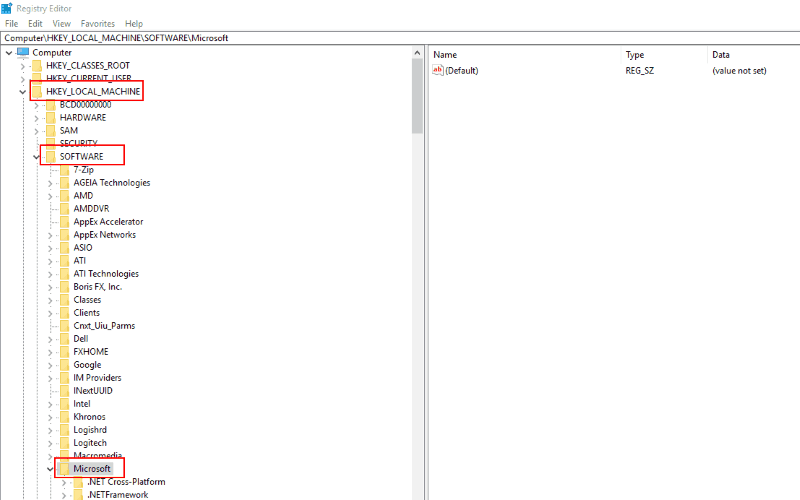
Type “regedit” into the Start Menu and press Enter. Expand “HKEY_LOCAL_MACHINE” and navigate through the registry keys to SOFTWARE, Policies, Microsoft and then Windows. Right-click the folder and select “New” and then “Key” in its context menu.

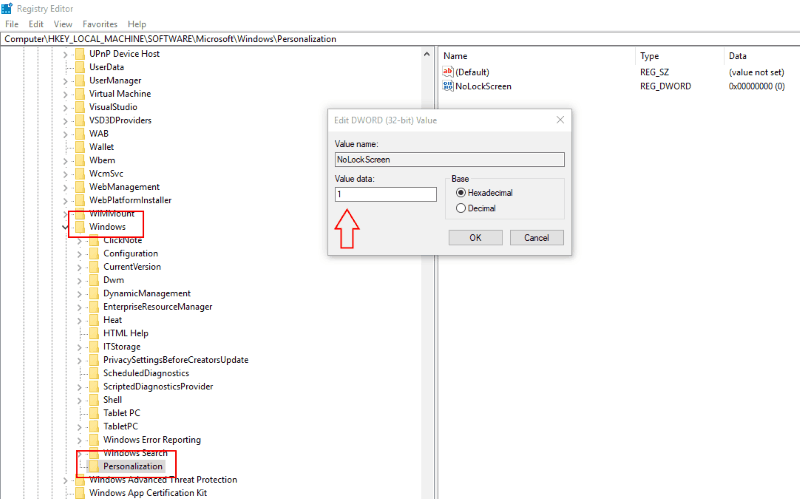
Name the key “Personalization” and then right-click it. select New and choose DWORD (32-bit) Value. Name it “NoLockScreen.” Double click your newly-created value and type “1” (without the quotes) into the “Value data” field. Click “OK” to save your change.